
Google Drive for Trainers: Build a Learning Path, Not a File Dump
14 May 2026
A practical guide for trainers and facilitators to use Google Drive as a learning path before, during, and after training.
A workshop can be well designed and still feel messy.
Not because the trainer is unprepared.
Not because the content is weak.
But because the learning materials live in five places, with names only the trainer understands.
Someone asks, "Where is the worksheet?"
Another person opens the wrong version.
A group completes the activity in a file nobody can find after the session.
The trainer says, "It should be in the folder."
And just like that, the energy drops.
This is a small thing that becomes a big thing.
Because when learners cannot find the material, they stop doing the learning and start doing admin.
Google Drive is not just a place to store files. For trainers and facilitators, Drive is part of the learning experience.
If the folder is clear, the learner feels guided.
If the folder is messy, the learner feels abandoned.
That is the shift: Drive is not storage. Drive is a learning path.
If learners cannot find it, for practical purposes, it does not exist.
Why trainers should care about folder design
Participants do not experience your training as separate pieces.
They experience the whole journey.
The email before the session. The pre-work link. The worksheet. The group activity. The recap. The action plan. The follow-up reminder.
If those pieces are scattered, the learning journey feels scattered.
This is especially true when you work with busy adult learners. They are not trying to admire your file system. They are trying to find the next useful thing quickly.
So the trainer's job is not only to prepare good materials.
The trainer's job is to make the path easy to follow.
The simple distinction: file storage vs learning context
File storage asks:
"Where should I put this document?"
Learning context asks:
"At what moment will the learner need this?"
That question changes everything.
When you organize Drive by file type, you create folders like:
- Slides
- Handouts
- Forms
- Recordings
- Photos
This makes sense to the trainer, because the trainer remembers how the content was created.
But learners do not think that way.
Learners think in moments:
- before the session
- during the activity
- after the workshop
- when I try this at work
So your Drive structure should follow the learning journey.
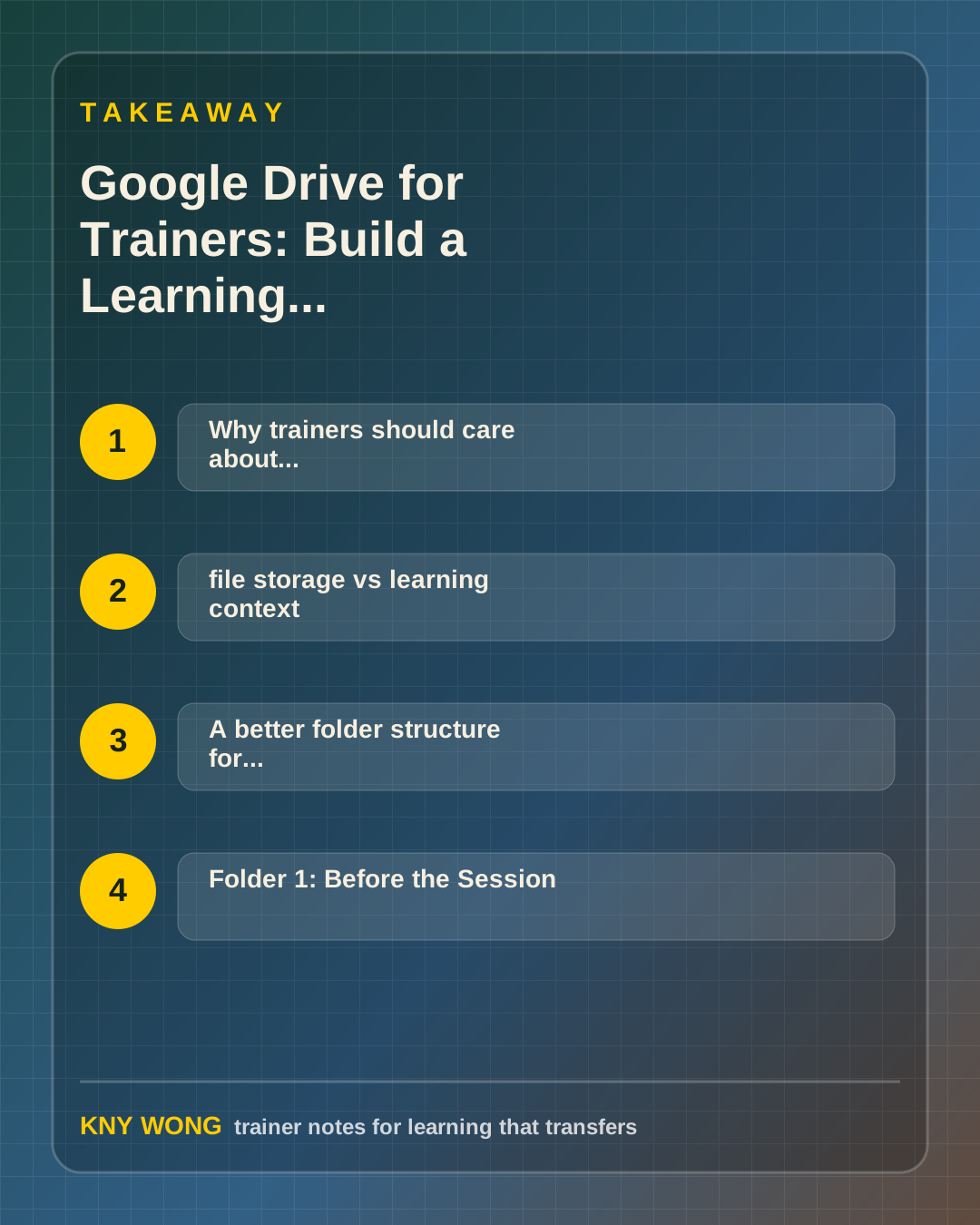
A better folder structure for one workshop
Use this simple structure:
01 Before the Session02 During the Session03 After the SessionFacilitator Only
That is enough for most workshops.
The first three folders are learner-facing. The fourth is not.
This matters because participants should not have to walk through your preparation mess to find their learning materials.
Keep the learner path clean.
Keep the trainer complexity hidden.
Folder 1: Before the Session
This folder prepares people to enter the room well.
It can include:
- welcome note
- pre-read
- baseline reflection form
- simple agenda
- what to prepare before joining
Do not overload this folder.
Pre-work should create readiness, not homework guilt.
If participants open the folder and feel tired before training begins, the folder has failed.
A good pre-session folder answers one question:
"What do I need to do so I can participate well?"
Folder 2: During the Session
This folder supports live participation.
It can include:
- activity worksheets
- group templates
- reflection sheets
- shared whiteboard links
- scenario files
This folder must be extremely clean.
During a live activity, people should not be searching. They should be thinking, discussing, deciding, and practicing.
One useful trick: number the materials in the order they will be used.
Example:
01 Individual Reflection02 Pair Discussion03 Group Output Template04 Action Plan
The numbering tells participants what comes next without you explaining it again.
Folder 3: After the Session
This is the folder most trainers underuse.
But this is where learning transfer begins.
After the session, participants need help remembering, applying, and explaining what changed.
This folder can include:
- recap notes
- action plan
- manager conversation guide
- 7-day practice prompt
- 30-day reflection form
Most training does not fail in the room.
It fails in the gap between "I learned this" and "I used this at work."
Your post-session folder should close that gap.
Folder 4: Facilitator Only
This is where you keep the materials learners do not need to see.
It can include:
- trainer notes
- backup activities
- timing plans
- client brief
- attendance records
- draft versions
This folder protects the learning experience.
Participants should see clarity. The trainer can carry the complexity.
Permission design is part of facilitation
Drive permissions are not just technical settings.
They shape participant behavior.
Use:
- viewer access for reference material
- commenter access for reflection and feedback
- editor access only for co-creation spaces
The common mistake is giving everyone editor access to everything.
That feels convenient at first. Then someone accidentally moves a file, edits the original worksheet, or types inside the master template.
Good permissions reduce friction before friction appears.
Where Gemini in Drive can help
Gemini in Drive can help summarize and query files, depending on your Google Workspace access and admin settings.
For trainers, the practical use is not "AI magic."
It is orientation.
Before a session, you can use AI support to quickly understand:
- what pre-work responses are saying
- which participant concerns appear repeatedly
- which briefing documents matter most
- what needs to be emphasized during facilitation
But keep the human judgment.
Gemini can summarize the room. It cannot read the room.
That part is still your work.
Common mistakes to avoid
The first mistake is building the folder for yourself instead of the learner.
If only you understand the folder, it is not learner-ready.
The second mistake is treating Drive as an archive.
An archive stores what happened. A learning path guides what happens next.
The third mistake is hiding the action plan after the session.
If the action plan is hard to find, it will not be used.
The fourth mistake is creating too many folders.
Complex structure does not signal professionalism. Clear structure does.
A 15-minute action step
Take one upcoming workshop and create this structure:
01 Before the Session02 During the Session03 After the SessionFacilitator Only
Then move only the essential files into each folder.
Ask one question as you move every file:
"When will the learner need this?"
If you cannot answer that, the file probably belongs in Facilitator Only.
Final takeaway
It either guides the learner or confuses the learner.
When Drive mirrors the learning journey, participants move with more confidence and the trainer spends less time rescuing the process.
Sources referenced:
- Google Drive Help: organize shared files
- Google Drive Help: access and permissions
- Google Drive Help: folder sharing
- Google Drive Help: file and folder ownership
Related reading:
- Google Docs for Trainers: Turn Learner Notes Into Transfer Tools
- Google Ops Stack for Trainers: The Follow-Through System
If you want this adapted for your trainers, teams, or facilitation workflow, contact Kny.