Google Ecosystem for Trainers: Build One Learning Workflow
14 May 2026
A practical overview for trainers and facilitators who want to use Google Workspace, Gemini, NotebookLM, YouTube, Vids, and Flow as one connected learning workflow.
Most trainers do not have a tool problem.
They have a workflow problem.
That is why some people can have Gemini, Drive, Forms, Sheets, Docs, Slides, Vids, NotebookLM, Gmail, Calendar, Tasks, YouTube, and Flow - and still run a messy learning experience.
No sugar coating.
More tools do not automatically create better training.
Sometimes more tools only create more places for learners to get lost.
The question is not:
"Which Google tool should I use?"
The better question is:
"What is the learner trying to do before, during, and after the training?"
Once that is clear, the tool finally has a job.
A tool list is not a learning design
A tool list sounds impressive.
Gemini for chat.
Drive for files.
Forms for surveys.
Sheets for dashboards.
Docs for notes.
Slides for delivery.
Vids and YouTube for video.
NotebookLM for reference.
Gmail, Calendar, and Tasks for follow-through.
Flow for AI-generated visuals and videos.
Nice list.
But learners do not experience your list.
They experience the path.
Before the session, they ask:
"What do I need to prepare?"
During the session, they ask:
"What do I do now?"
After the session, they ask:
"Where do I go back to and what should I apply?"
If the Google ecosystem does not answer those questions, it is only a toolbox on the floor.
The simple distinction: tool stack vs learning workflow
A tool stack is what the trainer uses.
A learning workflow is what the learner experiences.
That distinction matters.
The trainer may see:
- Form
- Sheet
- Drive folder
- Doc
- Slide deck
- Calendar invite
- NotebookLM notebook
The learner should feel:
- I know what to prepare.
- I know where the materials are.
- I know what activity we are doing.
- I know what I learned.
- I know what to try after this.
That is the standard.
The tool should disappear into the learning.
Before training: build context
Before the session, the trainer needs to understand the room.
Not in a dramatic way.
In a practical way.
Who is coming?
What do they already know?
What are they worried about?
What example will make them say, "Yes, this is my work"?
Use Forms to collect expectations, confidence ratings, questions, and pre-work.
Use Sheets to scan patterns.
Use Drive to organize briefing documents and materials.
Use Docs to prepare notes that can survive after the session.
Use Gemini, where available in your Workspace account, to summarize threads, draft communication, or help make sense of connected information.
But remember this.
Gemini can summarize the room.
It cannot read the room.
That part is still your work.
During training: reduce confusion
During the session, the tool should not become the main event.
If participants spend more energy opening links than doing the activity, the design is too heavy.
Use Slides to guide attention, not to carry every word.
Use Forms when you need quick input, reflection, or check-ins.
Use shared Docs or Sheets when participants need to co-create.
Use Drive links that follow the learning moment: before, during, after.
Do not make participants tour your whole digital system.
They are not there to admire your setup.
They are there to learn and practise.
After training: protect transfer
Most training does not fail in the room.
It fails after the room.
People go back to email, meetings, deadlines, and old habits.
That is where Gmail, Calendar, Tasks, Docs, Sheets, YouTube, Vids, and NotebookLM can help.
Use Gmail for a short follow-up that points to one action.
Use Calendar for a reflection session, manager check-in, or practice clinic.
Use Tasks to turn learning into a visible commitment.
Use Docs for learner notes.
Use Sheets to track patterns or simple evidence.
Use YouTube or Vids for a short recap when video will help people remember.
Use NotebookLM when participants need a source-grounded reference space around approved materials.
The goal is not to keep pushing content.
The goal is to keep the learning alive long enough to become behaviour.
Where AI belongs
AI belongs where it supports thinking, practice, and transfer.
Not where it adds noise.
Gemini can help draft, summarize, reframe, and plan.
NotebookLM can help learners work with approved sources and citations where available.
Google Vids can support short work videos, explainers, and recaps, depending on access and admin settings.
Flow can help create AI-generated video and visual assets, but every generated asset still needs review.
AI can speed up production.
It cannot decide what is worth learning.
The trainer still holds that responsibility.
A practical ecosystem map
Use this map:
- Gemini - thinking partner for planning, drafting, summarizing, and reframing.
- Drive - learning path for organizing materials by learning moment.
- Forms - structured input before, during, and after the session.
- Sheets - analysis, dashboards, and evidence.
- Docs - learner notes, action plans, facilitator guides, and reflections.
- Slides - session flow and visual prompts.
- Vids - short explainers, recaps, and asynchronous updates.
- NotebookLM - source-grounded reference notebooks.
- Gmail, Calendar, Tasks - communication, reminders, and follow-through.
- YouTube - hosting, captions, playlists, and repurposed learning content.
- Flow - scenario visuals and AI-generated video assets when appropriate.
Do not try to use all of them in one workshop.
That is not professional.
That is clutter.
Pick the tools that serve the learner's path.
Common mistakes to avoid
The first mistake is starting with the newest feature.
Start with the learning job.
The second mistake is making the tool more complicated than the activity.
If the setup is heavier than the practice, simplify.
The third mistake is using AI to produce more content without improving the learning.
More content is not always more value.
The fourth mistake is forgetting access.
Some Google AI features depend on plan, region, language, age, and administrator settings. Check before you design around them.
A 15-minute action step
Take one upcoming workshop.
Draw three columns:
- Before
- During
- After
Under each column, write what the learner needs to do.
Then choose the tool.
Not before.
After.
The learning job comes first.
Final takeaway
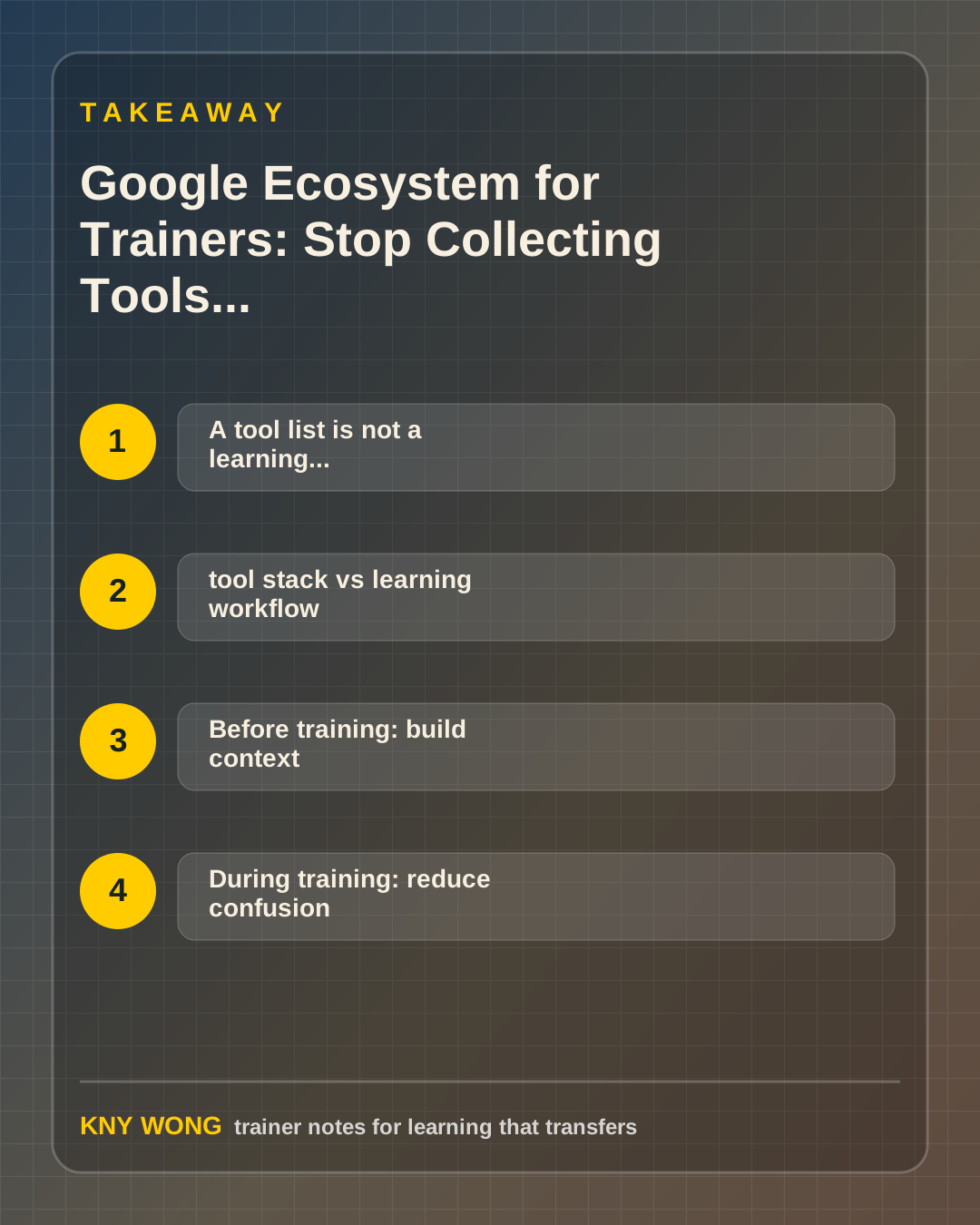
Build the learning path.
The Google ecosystem becomes useful when every tool has a job before, during, or after training.
Sources referenced:
- Google Workspace Help: core apps
- Gmail Help: productivity and workflow
- NotebookLM Help: workspace usage
- Google Slides Help: presenting and collaboration
- Google Labs Help: Flow guidance
Related reading:
- Google Ops Stack for Trainers: The Follow-Through System
- Google Drive for Trainers: Build a Learning Path, Not a File Dump
If you want this adapted for your trainers, teams, or facilitation workflow, contact Kny.